Features
Alerts
Configure ErrorLens alerts for new issues, regressions, spikes and monitors, delivered to email, Slack, Discord or signed webhooks with cooldowns.
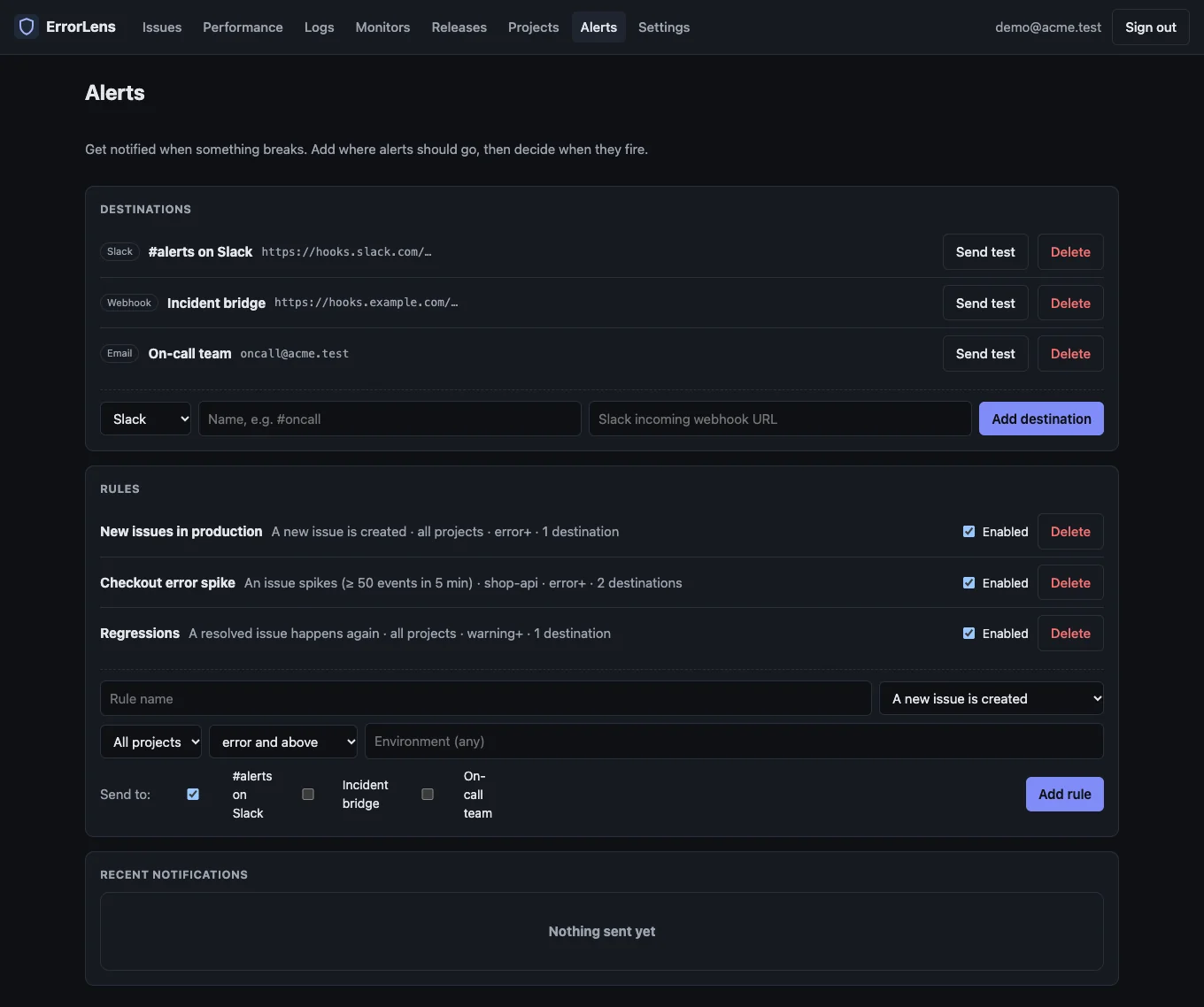
Alerts have two parts: destinations say where notifications go, and rules say when to send them. The Alerts page manages both, and lists every notification that was sent. Admins and owners can change alerts.
Destinations
Click Add destination and pick a type:
| Type | What to enter |
|---|---|
| Slack | An incoming webhook URL for the channel to post in |
| Discord | A channel webhook URL (Channel settings → Integrations → Webhooks) |
| One or more addresses, separated by commas | |
| Webhook | Any HTTPS URL, and optionally a signing secret |
Use Send test to check a destination before relying on it. Webhook URLs are hidden after saving, because they work like passwords.
Rules
A rule fires when its condition is met for an issue that matches its filters:
| When | Fires |
|---|---|
| A new issue is created | The first time an error is seen |
| A resolved issue happens again | When a regression reopens a resolved issue |
| An issue spikes | When an issue gets at least N events within M minutes, e.g. 50 in 5 minutes |
Narrow a rule with:
- Project — one project, or all projects
- Minimum level — e.g. error and above to skip warnings
- Environment — e.g.
production; leave empty for any
Then tick the destinations to send to and click Add rule. Untick Enabled to pause a rule without deleting it. New and changed rules take effect within 15 seconds.
Avoiding noise
- A rule notifies about the same issue at most once an hour, however many events arrive. Regression alerts are always sent.
- Issues you have ignored never trigger alerts.
- Monitor alerts (uptime and cron) are sent only when a monitor's status changes.
What a notification contains
Every notification names the reason (New issue, Regression, Spike: 50+ events in 5 min), the project, the issue title and culprit, its level and event count, and a link straight to the issue in your dashboard.
Webhooks
Webhooks receive a JSON POST:
{
  "event": "issue.alert",
  "data": {
    "subject": "[checkout-api] New issue: ZeroDivisionError: division by zero",
    "reason": "New issue",
    "title": "ZeroDivisionError: division by zero",
    "culprit": "shop.pricing in average_price",
    "project": "checkout-api",
    "organization": "acme-shop",
    "level": "error",
    "url": "https://acme-shop.errorlens.io/issues/42",
    "issueId": 42,
    "count": 1,
    "firedAt": "2026-11-26T09:41:12Z",
    "rule": "New issues in production"
  }
}
Verifying the signature
If you set a signing secret, each request carries an X-ErrorLens-Signature header: sha256= followed by the hex HMAC-SHA256 of the raw request body, keyed with your secret. Compute the same value and compare before trusting the request:
import hashlib, hmac

def verify(body: bytes, header: str, secret: str) -> bool:
    expected = "sha256=" + hmac.new(secret.encode(), body, hashlib.sha256).hexdigest()
    return hmac.compare_digest(expected, header)
import { createHmac, timingSafeEqual } from "node:crypto";
function verify(body, header, secret) {
const expected = "sha256=" + createHmac("sha256", secret).update(body).digest("hex");
return header.length === expected.length && timingSafeEqual(Buffer.from(header), Buffer.from(expected));
}Failed deliveries are retried automatically. On the hosted service, webhooks can only reach public internet addresses.
Email alerts come from [email protected]. Add it to your contacts so they don't land in spam.