Getting started
Quick start
Set up ErrorLens in five minutes: create a project, install the Python, Node.js or browser SDK, send a test error and get alerted when something breaks.
1. Create your account
Go to errorlens.io/signup and enter your name, email, a password of at least 10 characters, and an organization name. The organization is your team's workspace; its name becomes your dashboard address — "Acme Shop" becomes acme-shop.errorlens.io.
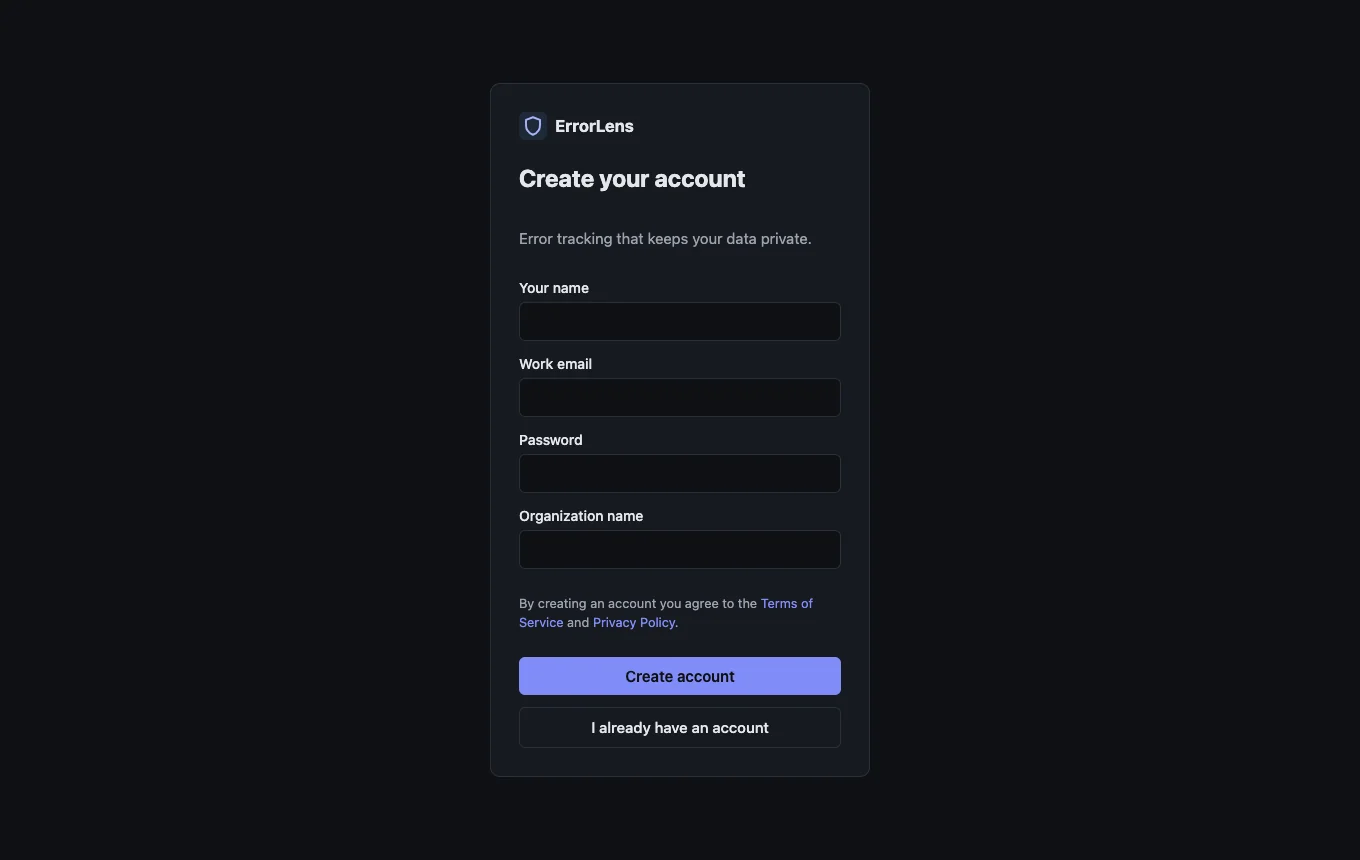
We send a confirmation link to your email. You can start using ErrorLens straight away; confirm your address when the email arrives.
Running your own server? The first visit to a new self-hosted instance shows a one-time setup form instead. See Self-hosting.
2. Create a project
A project is one app or service — "Checkout API", "Web storefront". Open Projects, type a name, pick the platform and click Create project. Every project gets a DSN: the address your SDK sends data to.
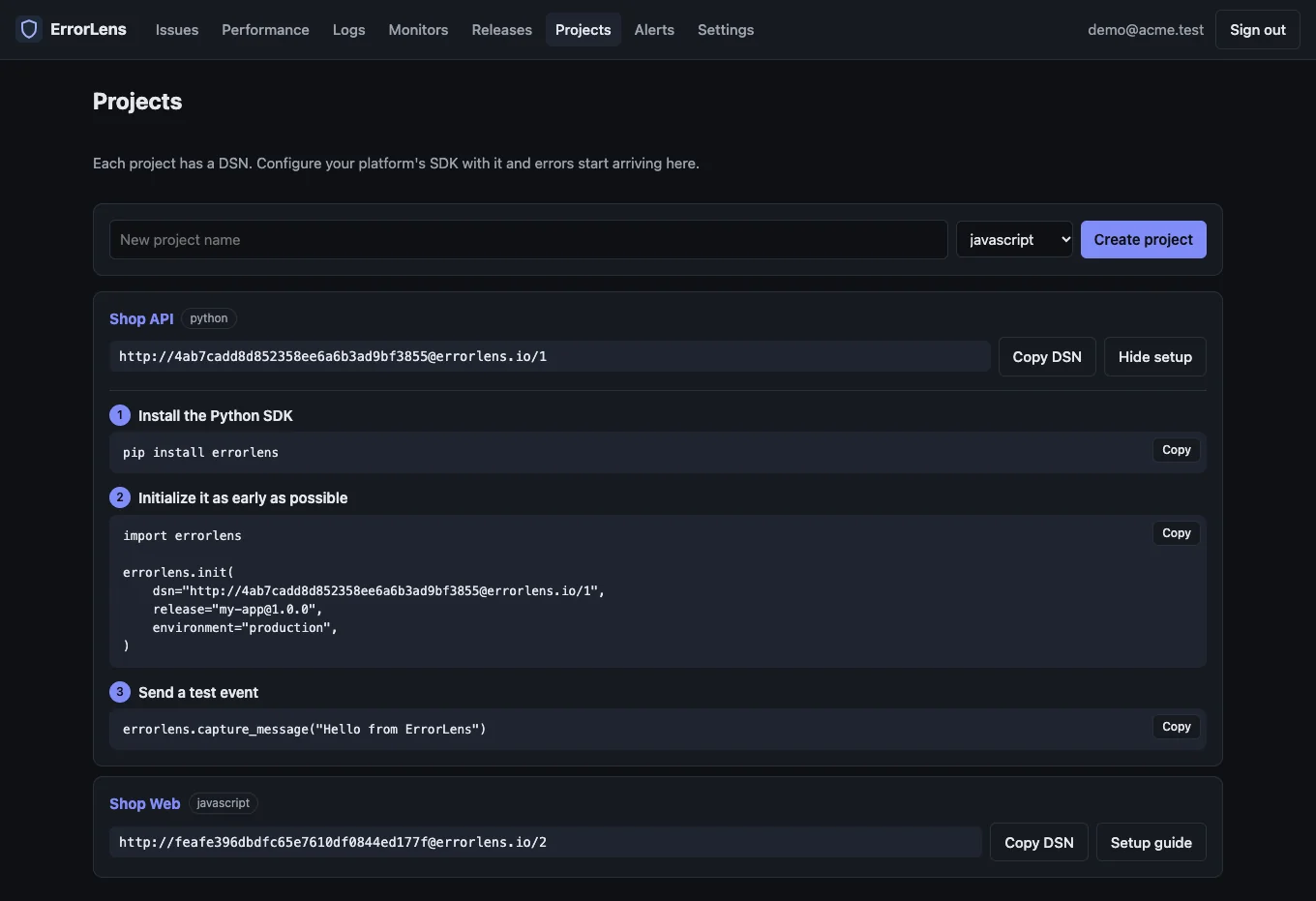
Click Setup guide for copy-paste instructions for your platform.
3. Install an SDK
Pick your language:
Python
pip install errorlensimport errorlens
errorlens.init(
dsn="https://<key>@errorlens.io/<project-id>",
release="[email protected]",
environment="production",
)Node.js
npm install @errorlenshq/nodeimport * as ErrorLens from "@errorlenshq/node";
ErrorLens.init({ dsn: "https://<key>@errorlens.io/<project-id>", environment: "production" });Browser
npm install @errorlenshq/browserimport * as ErrorLens from "@errorlenshq/browser";
ErrorLens.init({ dsn: "https://<key>@errorlens.io/<project-id>" });Other languages work too — see Other SDKs and OpenTelemetry.
4. Send a test error
Trigger an error your app doesn't handle, or report one on purpose:
errorlens.capture_message("Hello from ErrorLens")ErrorLens.captureException(new Error("Hello from ErrorLens"));Within a few seconds it appears on the Issues page of your dashboard.
5. Get notified
Open Alerts, add a channel (email, Slack, Discord or a webhook), then add a rule such as "a new issue appears in production". See Alerts.
What's next
- Issues and grouping — how errors become issues
- Performance — turn on tracing with one option
- Data scrubbing — check what is removed before storage
- Members and roles — invite your team