
Team & account
Members and roles
Invite your team to ErrorLens and control access with owner, admin, member and viewer roles per organization, plus SSO auto-join for your domain.
Inviting people
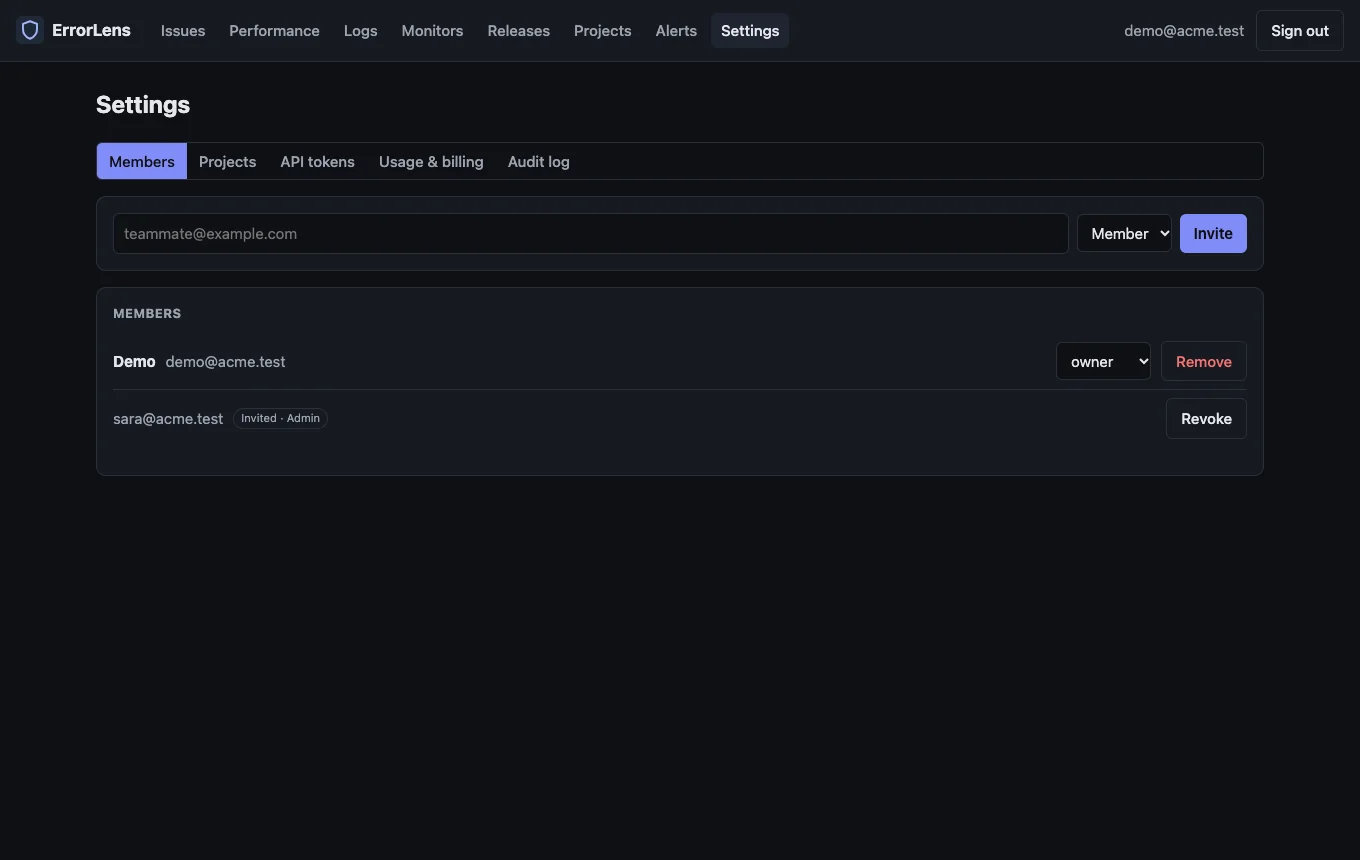
Admins and owners can invite people from Settings → Members:
- Enter their email address and choose a role.
- Click Invite.
- If they already have an ErrorLens account, they are added straight away.
- Otherwise ErrorLens emails them a link that is valid for 7 days. The link is also shown on the page, so you can send it another way. They open it, choose their name and password, and join the organization.
Pending invitations are listed below the members; revoke one to make its link stop working.
Roles
| Viewer | Member | Admin | Owner | |
|---|---|---|---|---|
| See issues, events, performance, logs, monitors and releases | ✓ | ✓ | ✓ | ✓ |
| Resolve and ignore issues | ✓ | ✓ | ✓ | |
| Upload source maps | ✓ | ✓ | ✓ | |
| Create and configure projects, client keys and privacy settings | ✓ | ✓ | ||
| Manage alert destinations and rules, and monitors | ✓ | ✓ | ||
| Invite and remove members, create API tokens | ✓ | ✓ | ||
| See the audit log | ✓ | ✓ | ||
| Add, remove or change owners | ✓ | |||
| Usage and billing | ✓ |
An organization always has at least one owner: the last owner can't be removed or demoted. To hand an organization over, make someone else an owner first.
Changing roles and removing people
Admins and owners can change a member's role or remove them from Settings → Members. Removing someone takes away their access straight away; their past actions stay in the audit log. Only owners can change other owners.
Several organizations
You can belong to any number of organizations with one account. Each has its own address — acme-shop.errorlens.io, side-project.errorlens.io — and the organization menu at the top of the dashboard switches between them. On the hosted service you can create another organization from your Account page.